Pixels, Resolution and the Picture You Actually See
Pixels and resolution explain a screen’s image grid, but content and viewing distance shape perceived detail. Learn how to compare screens for your seat.
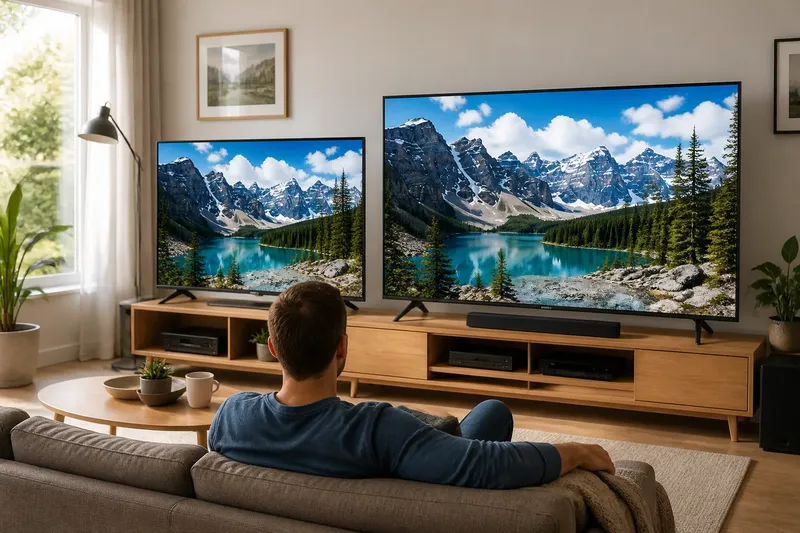
You can sit on the couch, glance at two televisions, and find that the one with the larger resolution number does not look noticeably sharper. Pixels and resolution describe the image grid, but the picture you actually see also depends on what is on screen and how far away you sit. That distinction makes it easier to compare displays without treating one number as a verdict.
What pixels describe
A digital picture is built from pixels, tiny picture elements arranged in a grid. Resolution gives the grid’s width and height in pixels; a screen listed as 3840 by 2160 has that many positions across and down. The number of positions describes capacity, not how much fine detail appears in every scene.
People often use “4K” as shorthand for a high-resolution screen, but a label alone does not tell you the source resolution, the image’s sharpness, or whether the content fills all available pixel positions with useful detail. A video can be displayed on a 4K screen even if its source image contains less detail. The display has to scale that image to fit.
Resolution is also different from pixel density. Density describes how tightly pixels are packed into a particular physical screen area. The same pixel grid spread across a larger panel has fewer pixels per inch than it would on a smaller panel, though that difference matters less as viewing distance increases.
Three useful comparisons
There is no single resolution choice that suits every viewer. These three comparisons help you match the screen to its usual content and seating position.
Lower resolution at a close seat
A lower-resolution screen may suit a small display viewed from across a room, or a setup where the source material is usually modest in detail. At a close desk, however, the pixel grid can become easier to notice, especially around small text and crisp, high-contrast edges.
This option makes sense when the screen is physically small, the seating position is fixed at a comfortable distance, and sharp text or fine line work is not a central use. It may be less appealing for someone who sits close to inspect documents, maps, or detailed images.
Higher resolution at a close seat
A denser image grid can be useful when you sit near a large monitor or want fine detail to remain clean at close range. Text and thin lines may appear more finely rendered, provided the source and the display’s scaling support that result.
This is a sensible direction for close viewing, but it does not make every video more detailed. If a source lacks fine information, extra screen pixels cannot recover details that were never captured. Interface scaling also matters: a high-resolution desktop may render text and controls too small unless the operating system enlarges them.
Higher resolution at a distant seat
A television across a living room can benefit from a larger image grid, particularly when the screen is large and the content carries fine detail. Yet the extra distinction between resolutions becomes harder to perceive as you move farther away. For a distant viewer, screen size and source quality may matter more than the largest number on a product box.
This choice suits people who want a large picture, watch detailed material, and have seating close enough for those details to remain visible. If the usual seat is far back and the screen is modest in size, paying attention only to resolution can distract from the actual viewing experience.
Content sets the ceiling
Resolution in a file or broadcast is only one part of image detail. Focus, lighting, compression, camera movement, and the original capture all affect how much fine information survives. A sharply captured landscape may show delicate branches and textures, while a soft or heavily compressed image can look smooth even on a very dense display.
Text and graphics can reveal differences more readily than a scene with soft backgrounds or broad color fields. A desktop interface may contain crisp letters and narrow lines; a dim film scene may have little edge detail to compare. That does not mean one screen has changed. The material simply gives your eyes different clues.
Upscaling is the process of adapting a smaller image to a screen with a larger pixel grid. A display or playback device estimates how the added image positions should look. Good scaling can make the picture appear smooth and coherent, but it cannot turn an indistinct source into genuinely captured fine detail.
Distance changes visibility
At a nearer seat, your eyes can distinguish smaller features on the screen. At a farther seat, those features occupy less of your view, so differences that were apparent up close may become difficult to see. This is why a resolution comparison should be made from the seat you actually use, not only from a showroom position or a close-up product photo.
Screen size matters alongside distance. A large panel occupies more of your view than a small one at the same seat, so its image structure can be easier to inspect. There is no universal distance that makes a particular resolution right for everyone: eyesight, content, screen dimensions, and personal preference all play a part.
Say you are choosing between two televisions for a living room, and you usually watch from the same sofa. Imagine that one screen has a higher resolution while both show the same detailed nature scene. Compare them from that sofa, then notice whether fine branches or distant textures look meaningfully clearer to you; if the difference disappears at your usual seat, the larger resolution label may not be the deciding factor.
Choosing for your seat
Start with the viewing position and the material you watch most. A person editing images close to a monitor has a different need from someone watching dialogue-driven shows from across a room. Neither situation makes resolution irrelevant; it changes how much weight to give it.
- For close desktop work: Consider pixel density, text clarity, and the operating system’s scaling options alongside the resolution.
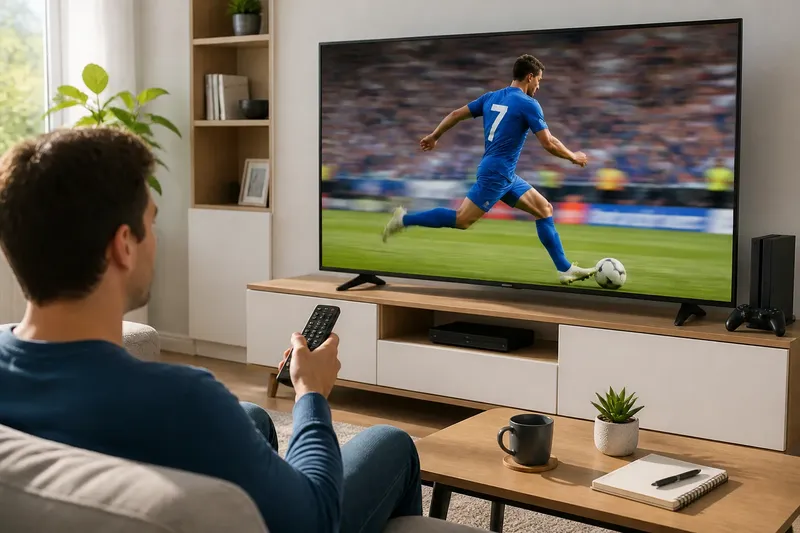
- For a large television: Judge the picture from the main seat, especially if you watch detailed films, sports, or nature programs.
- For older or compressed content: Expect the source to limit visible detail, even when the display has a dense pixel grid.
- For mixed use: Think about which tasks require readable fine text and which are usually watched from farther away.
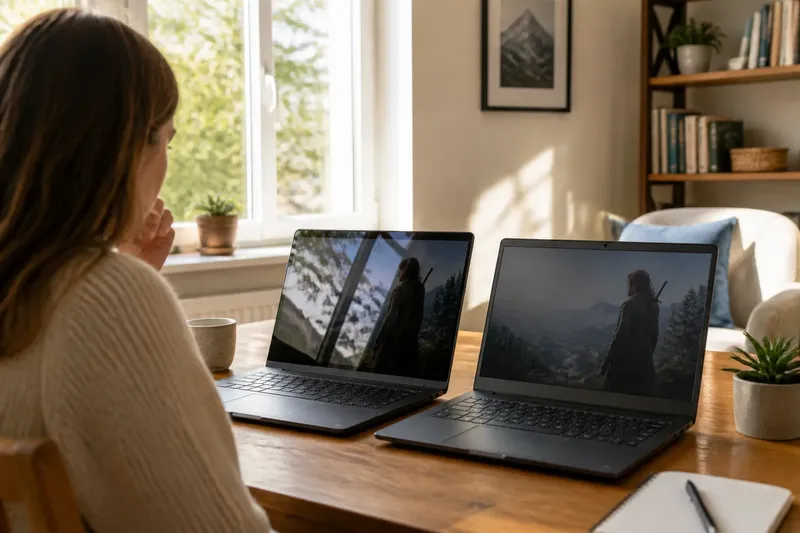
- For a comparison in person: Use the same source, scene, screen settings, and viewing position so the resolution is not confused with other differences.
When comparing product specifications, check the complete resolution rather than relying on a label alone, and look for the physical screen size as well. For a computer monitor, consider whether the operating system can scale menus and text comfortably. For a television, check which sources you will actually use; a high-resolution panel cannot make every connected device or stream deliver equally detailed material.
Questions about detail?
Does more resolution always look sharper?
No. Extra pixels can support finer visible detail, but the image source, scaling, screen size, and viewing distance determine whether you can see a difference. If the source is soft or the screen is viewed from far away, the added resolution may be difficult to notice.
Can a lower-resolution video look good on a 4K screen?
Yes. The screen can scale a lower-resolution video to fill its pixel grid, and the result may look perfectly enjoyable. Scaling does not restore details absent from the source, so the image may still look less fine than material captured at a higher resolution.
Is resolution the same as sharpness?
No. Resolution describes the dimensions of the image grid, while perceived sharpness is an impression shaped by detail, focus, contrast, scaling, and viewing conditions. A high-resolution image can still look soft if its source is blurred or its fine information is lost.
Should I choose the highest resolution I can?
Choose based on the screen’s size, your usual seat, and the kinds of content you use. Higher resolution can be valuable for close viewing or a large, detailed image, but it need not be your top priority when the source and viewing distance make the distinction hard to see.
What to prioritize
Pixels and resolution are useful starting points, not a complete description of picture quality. The clearest choice comes from considering the source, the display’s physical size, and the distance between the screen and your seat together.
For your own comparison, keep the question simple: does the additional image detail remain visible from the place you actually watch? If yes, higher resolution may serve your needs; if not, give more attention to screen size, comfortable text, and the quality of your usual content. That is a more grounded way to choose than chasing the largest number on a label.