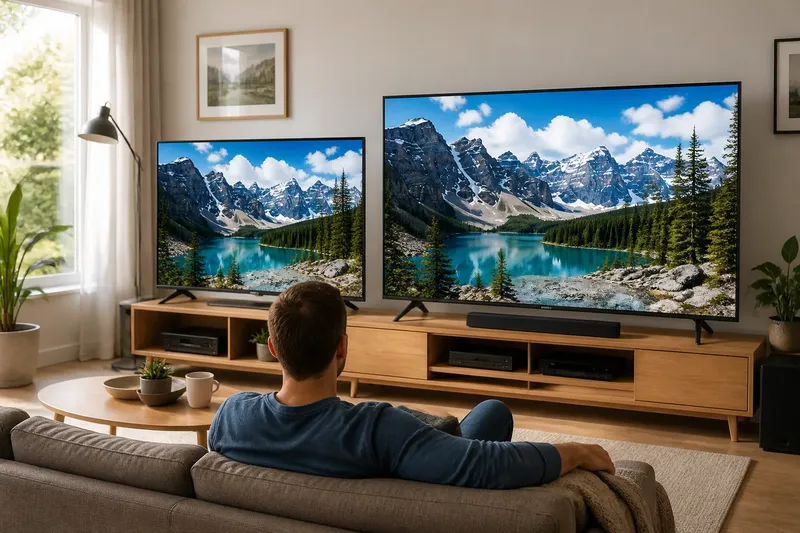
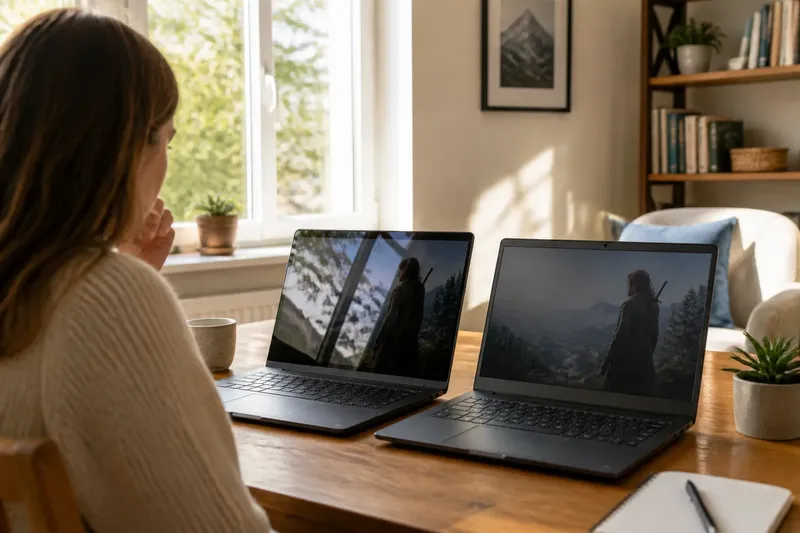
The Refresh-Rate Number Is Not the Whole Motion Story
Refresh rate is only one part of screen motion clarity. Trace the content, display mode, and processing settings to see what shapes moving images.
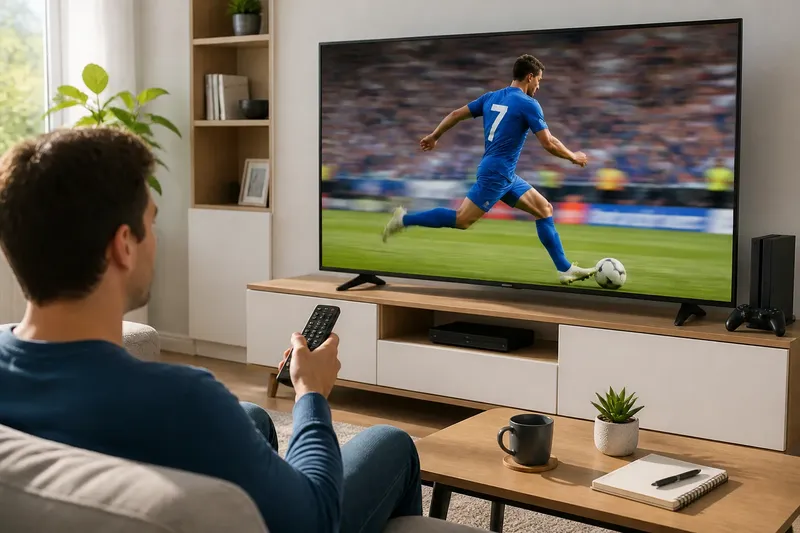
You pause a sports stream as a player crosses the field, and the still frame looks crisp. Resume playback and the player’s outline seems to smear. The refresh-rate figure on the TV’s box may be impressive, but it cannot explain that change on its own. To understand motion clarity, follow the whole path from the source video to the pixels you see.
Start with the source
A screen can only show motion information that reaches it, unless its processing creates extra frames. Movies, broadcast television, games, and streaming video may be produced or delivered with different frame rates. A screen’s refresh rate describes how often it can update; the content’s frame rate describes how often the source supplies a new image.
Those figures do not have to match. A display may repeat source frames, or use processing to create intermediate ones. Repeating a frame can keep timing orderly, but it does not reveal a new moment in the action. Added frames can make movement appear smoother, though the result may look different from the source’s intended presentation.
When motion seems unclear, first identify what you are watching and how it arrives. A movie app, live broadcast, game console, and cable box can each send a different kind of signal. If the problem appears in only one app or input, the source or its settings deserve attention before you blame the panel.
Read refresh rate carefully
Refresh rate is commonly expressed in hertz, or Hz. It tells you how frequently the display can refresh its image, not how many distinct frames every program contains and not, by itself, how sharply a moving object will appear.
Also check whether a product description is naming a native panel refresh rate or using a manufacturer’s motion label. Terms such as “motion rate” can combine or describe processing features rather than state the panel’s actual refresh behavior. Look in the detailed specifications or the on-screen information for the native rate and supported input modes.
A faster refresh capability can matter when the source provides frames at a matching pace, as may happen with compatible games or certain video signals. With slower content, the screen may repeat frames or interpolate new ones. In neither case does the box’s largest number tell you exactly what a moving scene will look like.
Check the signal path
Next, consider what is carrying the picture. A streaming device, receiver, console, or computer may output a mode that differs from the content’s original format. The TV may then convert that signal to one it can display, adding another point where timing and processing can change.
Open the source device’s video settings and the TV’s signal information, if available. Compare the selected output mode with the content and display modes each device supports. For a console or computer, also check that the chosen resolution and refresh option are supported by the screen and the connection between them; a menu choice alone does not prove the whole path is using it.
Say you are watching a live match through a streaming box and notice trails behind quick passes. Imagine the box is set to a mode that does not match the stream, while the TV has motion interpolation enabled. You could compare the TV’s signal information, check the box’s output selection, then briefly disable interpolation; the observable result would be whether the trails or the smoothness change, helping you narrow down which part of the chain is involved.
Separate blur from judder
Blur and judder can both make motion look unpleasant, but they are not the same symptom. Blur is a softened or smeared appearance during movement. Judder is an uneven, stuttering progression, often noticeable when a camera pans steadily across a scene.
Some blur comes from the display’s response as pixels change from one shade to another. Other blur is part of the source image: a camera records movement over time, so a fast-moving subject can already be soft in the frame. A higher refresh number cannot restore detail that the source never captured.
Judder is more about how frames are paced or converted. A film presented on a screen with a different refresh rhythm may show uneven motion, while frame interpolation can smooth that motion by estimating what might happen between source frames. The estimate can introduce visual artifacts around fast edges, hands, or objects crossing one another.
Notice when the problem occurs. A soft edge on a moving ball suggests blur; a repeated hitch during a smooth camera pan suggests uneven cadence. The distinction helps you choose a setting to test rather than turning on every motion option at once.
Test motion settings
Use one familiar scene with a steady pan or fast movement, and keep the source and viewing conditions unchanged while you compare settings. The goal is not to make every program look the same; it is to learn which adjustment changes the specific artifact you notice.
- Motion interpolation: Often called motion smoothing, this creates estimated frames. Try a low setting or turn it off, then watch for a change in smoothness and any unnatural edges.
- Film or cinema mode: This may help the TV recognize film cadence and display it more evenly. Compare a film scene with the mode enabled and disabled.
- Game mode: This commonly reduces processing delay for interactive play, and may disable some motion features. Use it when responsiveness matters, then judge motion in the game rather than a movie.
- Black-frame or backlight scanning options: These can change how motion is perceived, but may also alter brightness or create visible flicker. Check the screen’s guidance and use a comfortable setting.
- Per-input picture settings: Many TVs save separate choices for different HDMI inputs or apps. Confirm that the setting you changed applies to the source you are watching.
Change one option at a time and give the same moment a look before moving on. If you alter interpolation, game mode, and picture presets together, you may like the result but not know which change mattered. There is little value in chasing a technically smooth image if it makes a movie look artificial or a screen uncomfortable to watch.
Questions about motion?
Does a higher refresh rate always reduce blur?
No. It describes the display’s update capability, while blur can come from the source, pixel response, or how moving images are captured. The content and processing settings still shape what reaches your eyes.
Why does motion smoothing look like a soap opera?
Interpolation adds estimated frames, which can make film movement appear unusually fluid compared with its original cadence. Turning the feature down or off is a reasonable comparison if that look distracts you.
Why does one input look smoother than another?
Different devices may send different output modes, and TVs may store picture settings separately by input. Check the signal information and the active input’s motion settings before comparing sources.
Should I use the highest refresh setting for games?
Use a mode supported by the game, device, connection, and screen, and consider whether low input delay matters to you. A higher selectable rate is useful only when the full signal path can deliver it.
Follow the whole chain
For a clearer motion diagnosis, start with the source, verify the signal being sent, identify whether you see blur or judder, and then compare one relevant processing setting. Keep the scene consistent and note what actually changes on screen.
That approach gives the refresh-rate number its proper place: one useful specification among several, not a verdict on picture quality. When choosing a display, compare the native refresh information with the kinds of content and devices you use, then check the available motion controls. A screen’s everyday motion is shaped by the complete path from each source frame to the image in front of you.